Z-index not working? Debug it the modern way.
I usually write technical articles that attempt to dig deep into the selected topic - this is not one of them. This is quite an opposite of your usual tech digest. A simple, but visual article.
Originally published on Senvio's blog: Z-index not working? Debug it the modern way.
Intro
If you're scratching your head, lamenting on why is your fancy modal, overlay, dropdown, or tooltip (or any other web element for that matter) covered by another web element, even though you already set its z-index higher than the culprit, you may find this article useful.
What this article is
The article itself explores debugging z-index outside of your standard "Elements" panel. It explores debugging by solely a visual approach, that's implemented in some of the Chromium-based browsers but seems to go mostly unnoticed.
What this article is NOT
It's not a deep dive into what z-index is, what's its relation to "Stacking Context", or how is it formed. Since we're exploring a solely visual way of debugging, being comfortable with these concepts is not a requirement to continue, but I'd strongly recommend reading through basic MDN docs like this one on z-index or this one on "Stacking Context".
A model scenario
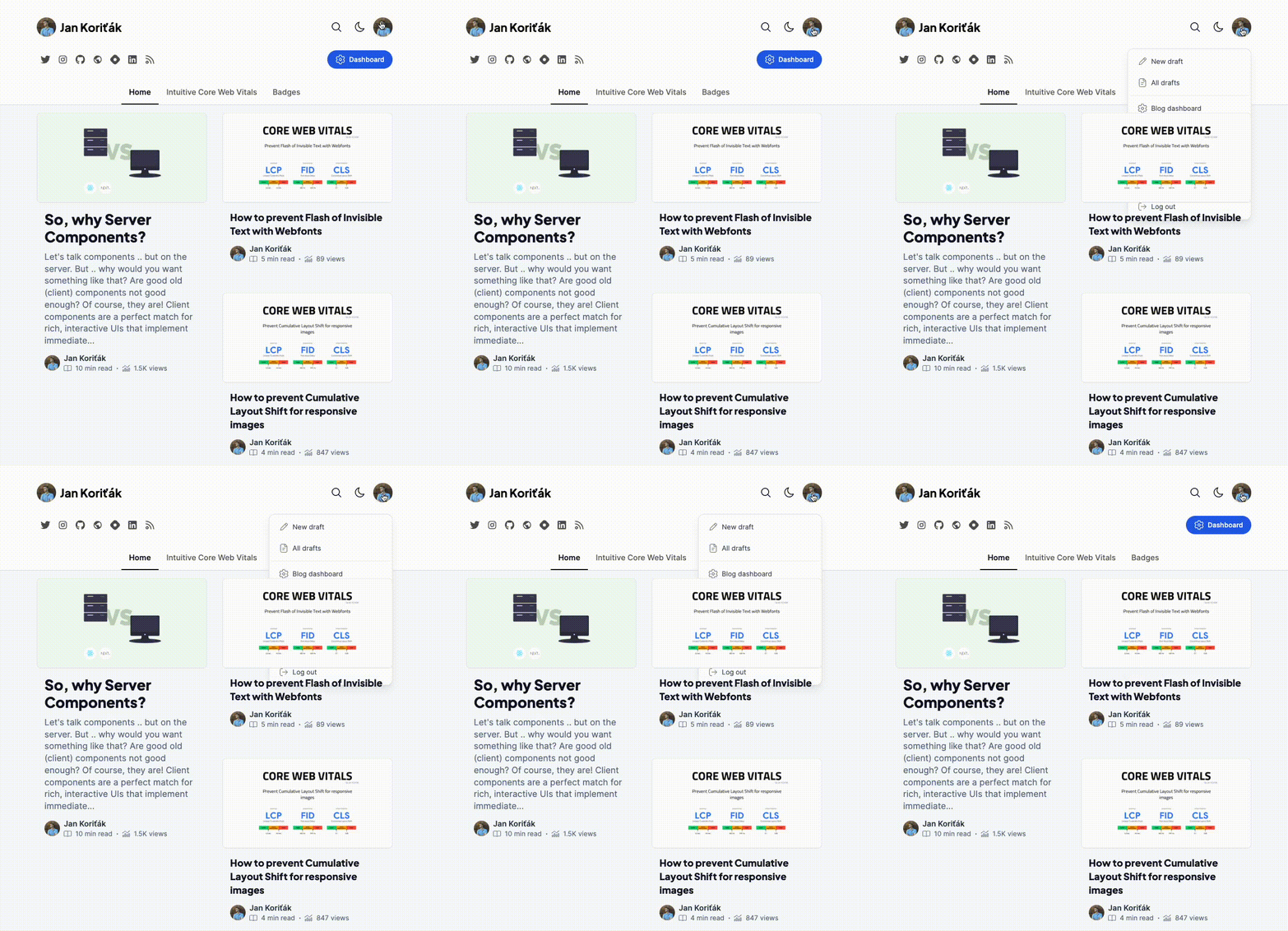
Let's take my blog, and break it in a simple, silly way. I hope you can identify the problem.
For those who overlooked the issue - the dropdown elements are for "some reason" rendering under the elements of one of my articles.
Let's get to debugging, shall we?
Debugging in 3D
Now, if you're like me, you'd locate the element, Inspect it in your DEV tools, and start comparing the z-indexes of the dropdown and the article component.
In the simplest scenario, bumping the z-index of the dropdown would do the job. If the markup and styles are more intricate we'd have to start figuring out the formed stacking contexts by going up through all relevant predecessors of our components and fiddling with z-indexes and other CSS properties.
Forget that for now, and let's try something new today. Let's inspect the web page in 3D view and debug the problem visually.
Support
The "3D View" is currently only supported by MS Edge. There are other Chromium browsers, that support similar features called "Layers", however, it seems pretty limited from what I could see, so I recommend attempting this in MS Edge.
| Browser | Support | Feature name |
|---|---|---|
| MS Edge | ✅ | 3D View |
| Google Chrome | 🟧 | Layers (limited) |
| Arc | 🟧 | Layers (limited) |
| Opera GX | 🟧 | Layers (limited) |
| Brave | 🟧 | Layers (limited) |
I'm unsure about the rest of the browsers as well as the different implementations outside of Chromium. You'll have to fiddle with that by yourself.
Getting the visual
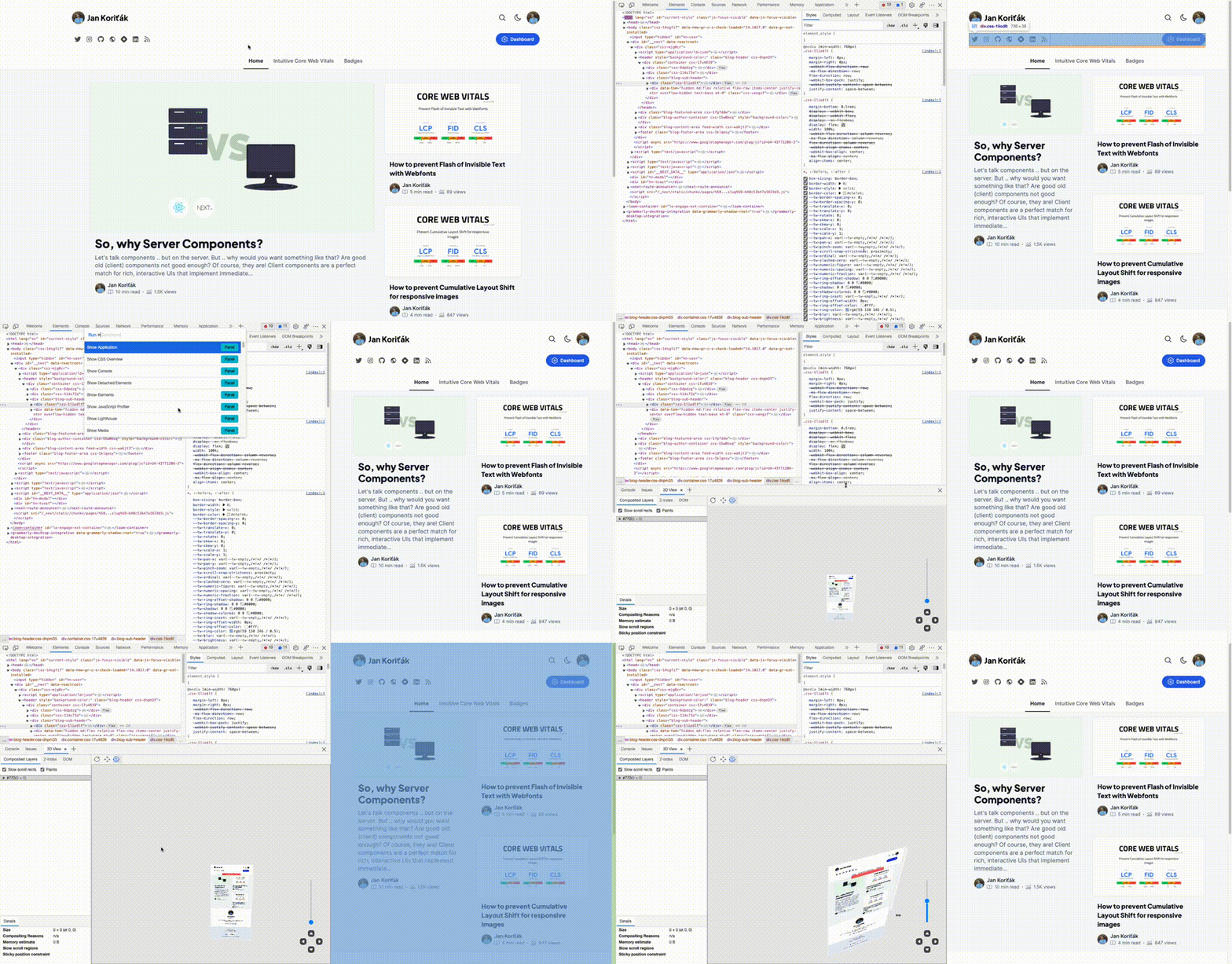
Let's open up the "3D View".
- Open the Dev Tools
- Open Command Palette (Cmd+Shift+P on Mac, Ctrl+Shift+P on Win)
- Find your "Show 3D View" or "Show Layers" command
- Execute it
Your Dev Tool will open the desired "3D View" of the web page, so let's explore it.
Debugging, but fun?
Inside the "3D View" panel, you can see three tabs:
- Composited Layers
- Z-index
- DOM
We'll be exploring "Z-index" more, but let's just get those two others out of the way.
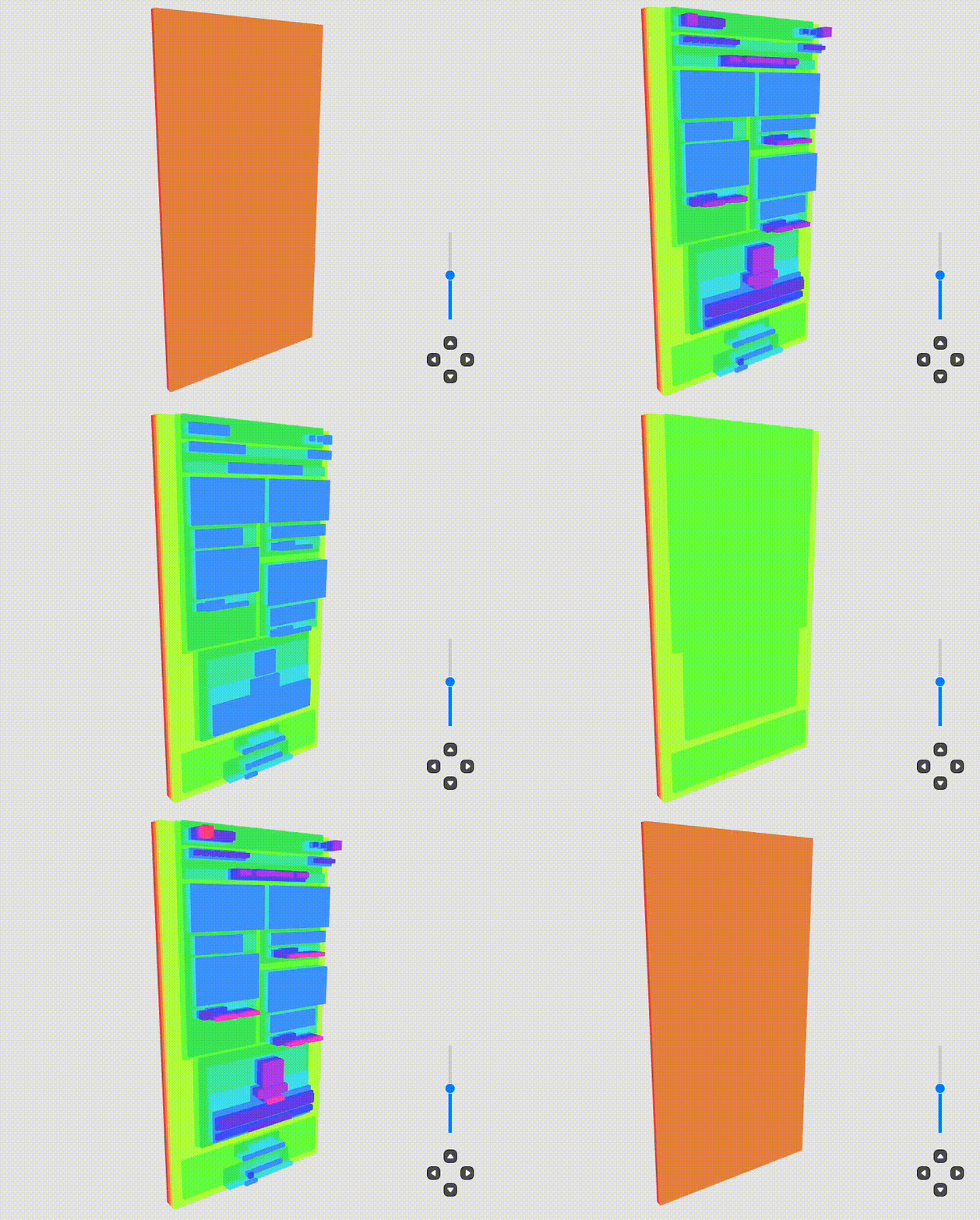
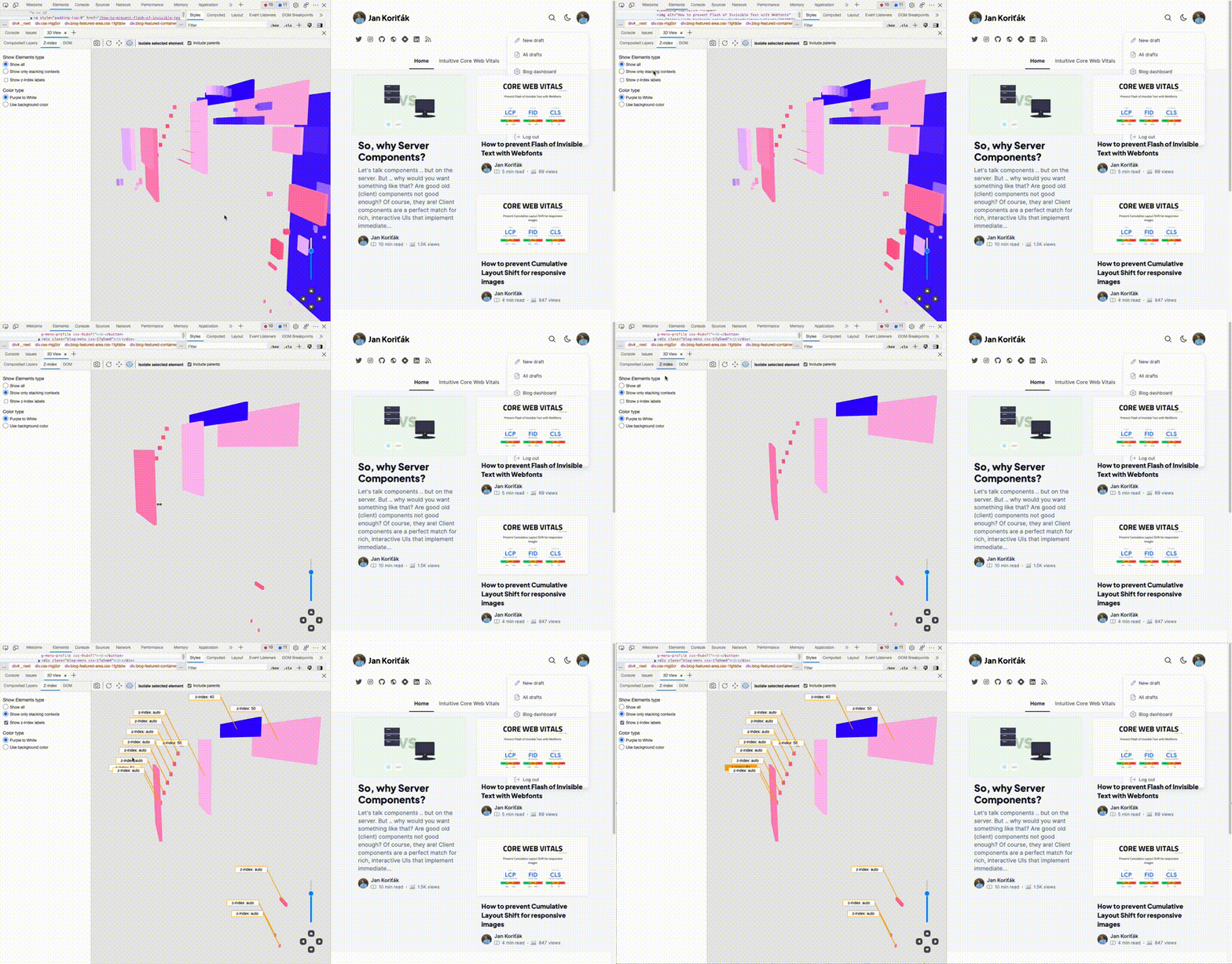
Composited Layers tab - Basically renders your (2D) web page in the 3D space. Quite a conservative view, but may be useful for web page elements that naturally stick out of the common view.
DOM tab - What this tab lacks in usefulness for z-index debugging, is it over-delivers in coolness. The tab allows you to basically peel the page layer-by-layer. What is this useful for? I have no idea but look at the colors!
Debugging z-index
Let's get to the debugging part now, we still have a broken web page to fix, so let's visualize the z-index properties of the web page. Remember, we're trying to figure out why the article tile covers our dropdown menu.
Let's observe the web is 3D and try to locate the problem.
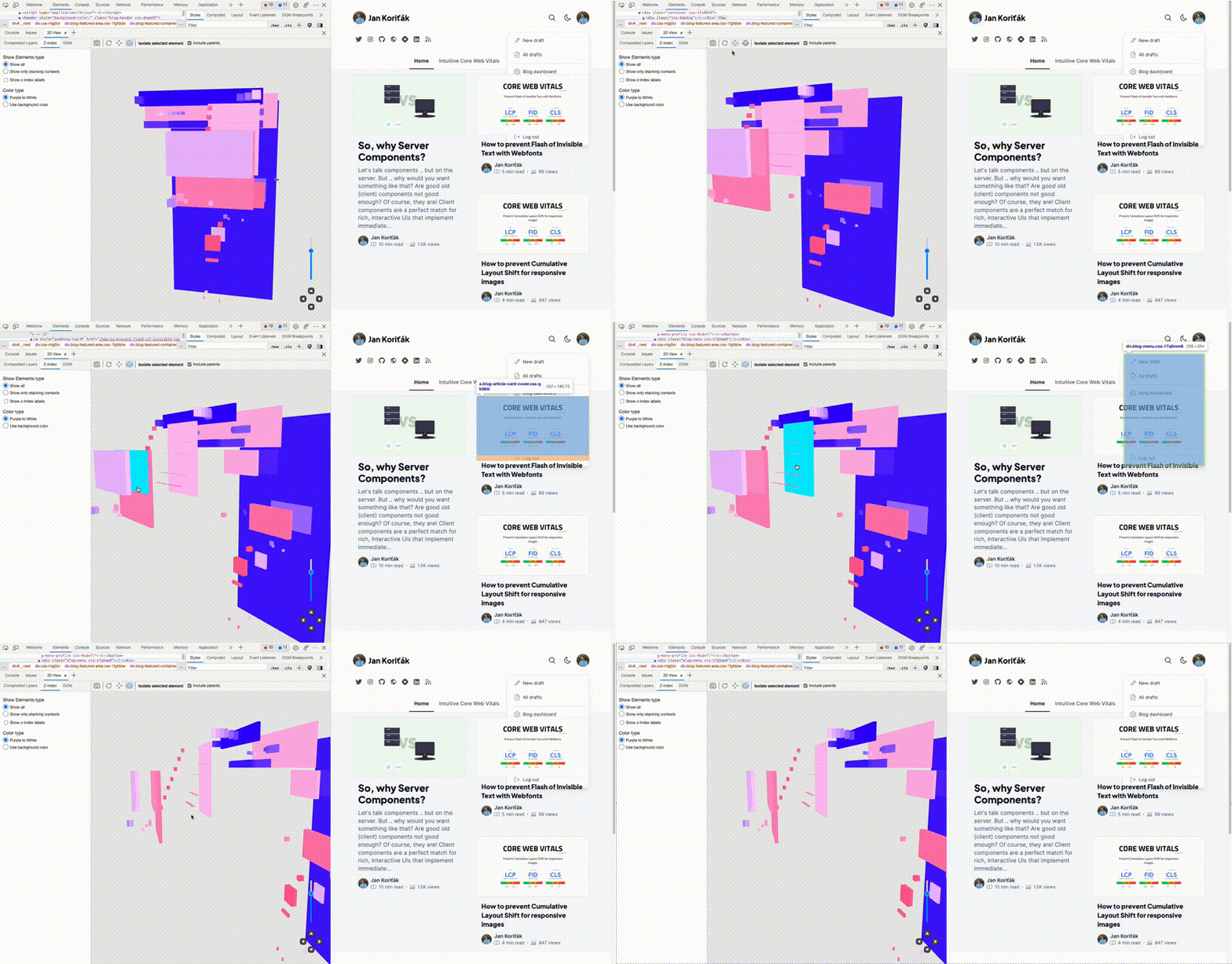
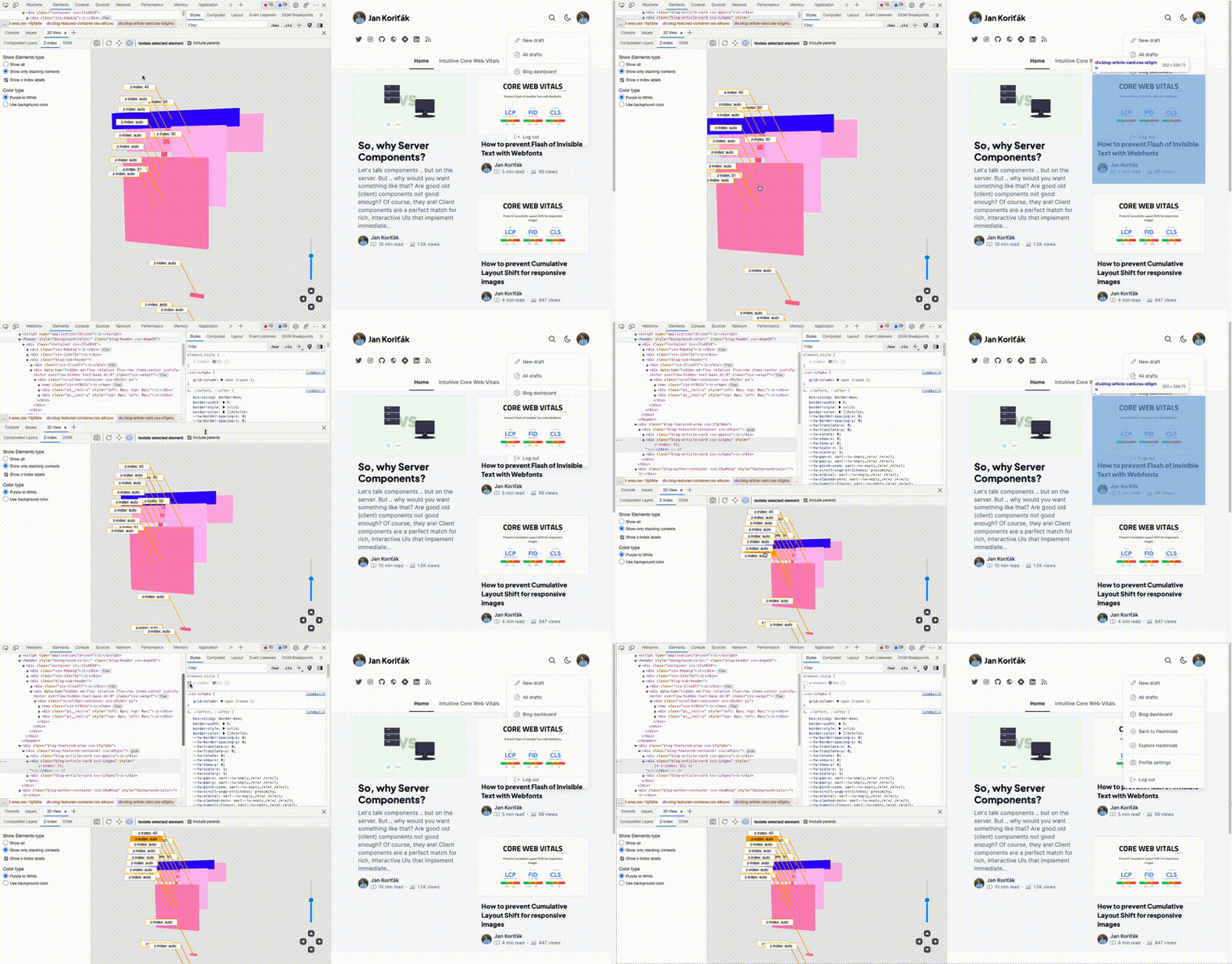
From the "3D View", we can observe that on the z-axis, the article tile is positioned above the dropdown. Which exactly maps to the problem we're troubleshooting.
Let's try to reduce the view to give it more clarity.
In the first step, we reduced the amount of all rendered elements by only rendering distinct stacking contexts. Then, by slapping the z-index value labels to our respective contexts, we can see the problem in numbers and figure out the issue - visually.
While Hashnode uses z-index of 50 for the dropdowns, our culprit article tile somehow uses z-index: 51. There we go, silly mystery resolved.
Final words
It's great to see debugging tools are moving way beyond the usual digging in source code. MS Edge's "3D View" is a great example of a hidden gem, that can save you time drilling through markup element by element when debugging z-index-induced bugs.
As a said before, this was everything, but technical. However, I still hope you found this refreshing and useful.
FAQ
Why is my element covered by another even though its z-index is higher?
z-index only competes within the same stacking context. If your element sits in a different (or lower) stacking context than the one covering it, a higher z-index value won't help — you have to fix the context, not just the number.
How do I debug z-index visually?
Use MS Edge DevTools' '3D View'. It renders the page in 3D so you can see stacking contexts on the z-axis and read each context's z-index value, instead of digging element-by-element in the Elements panel.
How do I open the 3D View in DevTools?
Open DevTools, open the Command Palette (Cmd+Shift+P on Mac, Ctrl+Shift+P on Windows), search for 'Show 3D View' (or 'Show Layers'), and run it.
Which browsers support the 3D View?
MS Edge has the full '3D View'. Other Chromium browsers (Chrome, Arc, Opera GX, Brave) have a more limited 'Layers' feature.